
Split the built-in keyboard
On supported iPad models, Apple’s keyboard splits into two halves, one under each thumb.
- Open Settings and choose General → Keyboard.
- Turn on the Split Keyboard switch.
- Tap a text field to open the keyboard.
- Touch and hold the Hide Keyboard key in the bottom-right corner, slide your finger to Split, then release.
Put a split keyboard back together
Touch and hold the Hide Keyboard key, slide your finger to Merge, then release. To keep the keyboard from splitting again, turn off the Split Keyboard switch in Settings.
Which iPads have a split keyboard
Apple’s iPad User Guide lists the built-in split keyboard for these models only:
- iPad mini (5th generation and later)
- iPad (6th to 9th generation)
- iPad Air (3rd generation)
The 11-inch, 12.9-inch, and 13-inch iPad Pro, iPad Air (4th generation and later), iPad (10th generation), and iPad (A16) are not on the list. On those models, the Split Keyboard switch does not appear in Settings.
Move the iPad onscreen keyboard (Apple Support)
If your iPad has no split option
Use the floating keyboard
Touch and hold the Hide Keyboard key, slide your finger to Floating, then release. A miniature keyboard opens that you can drag anywhere on the screen. It suits typing with one hand more than typing with both thumbs.
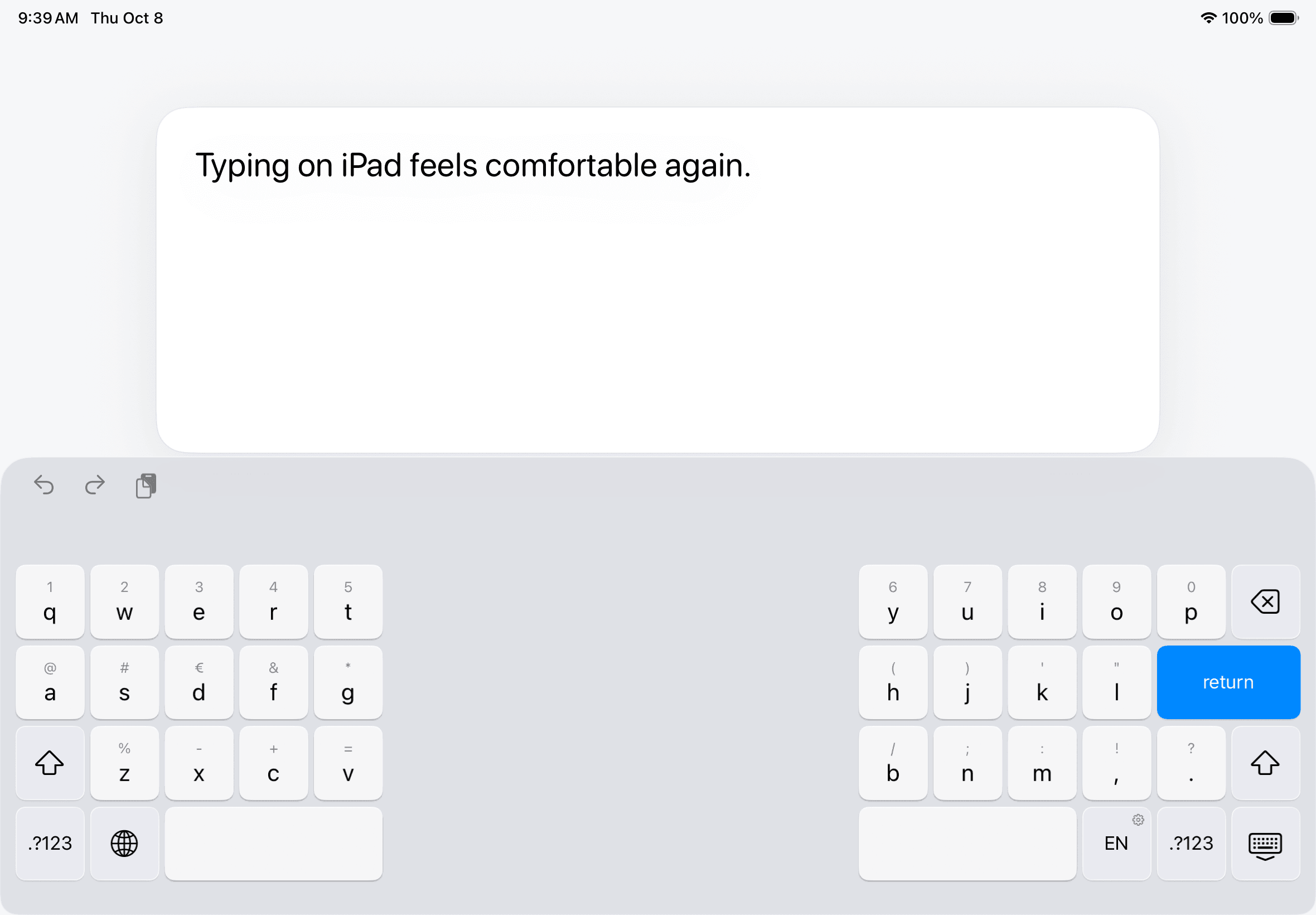
Add Split Keyboard
Split Keyboard is a third-party keyboard that adds a split layout to every iPad running iPadOS 18 or later, including iPad Pro and iPad Air. It offers word suggestions and autocorrection, and it works without Full Access.

- Install and open Split Keyboard.
- Choose General → Keyboard → Keyboards.
- Tap Add New Keyboard, then select Split Keyboard.
- Hold the globe in a text field and choose Split Keyboard.